Murf AI Notion Integration: How to Add AI Voiceovers to Notion
The Murf AI Notion integration lets you place a Murf voiceover player inside a Notion page. Create your narration in Murf, then embed it alongside your written content..
The Murf AI Notion integration lets you place a Murf voiceover player inside a Notion page. Create your narration in Murf, then embed it alongside your written content. This is an audio embedding workflow; the documentation does not describe automatic Notion text-to-speech conversion or two-way workspace syncing.
Affiliate disclosure: This article contains referral links. DailyAIPedia may earn a commission if you purchase through them, at no extra cost to you.
What Can You Do With Murf in Notion?
Murf describes the integration as a way to add voiceovers to Notion workspaces through its embed code. The audio is produced in Murf and presented within your page, where readers can listen while reviewing the surrounding material.
For a useful first project, choose a page that benefits from a short spoken explanation. A one-minute introduction often serves readers better than a recording of every heading and bullet. Keep the written version available so readers can scan, search, and choose how to consume the content.
How to Embed Murf AI Audio in Notion
1. Prepare the voiceover. Finish your Murf project and listen through it before sharing. Check names, pauses, and the opening sentence.
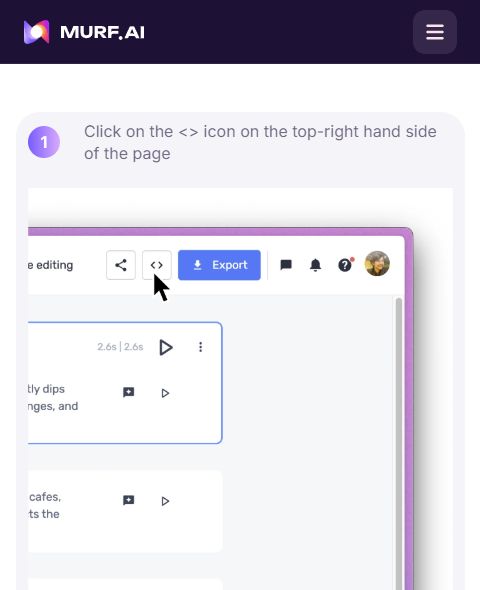
2. Generate the embed. Murf’s guide shows an angle-bracket icon near the top-right of the project. Open it, choose Generate Embed Code, then copy the result.
3. Add a Notion embed block. On a new line in your Notion page, type /embed and select the embed option. Notion’s help documentation says to paste the content URL or embed link.
4. Insert the player link. Use the Murf embed URL in the link field and confirm. If the copied output is an iframe snippet, the player URL is the address inside its src attribute; do not paste the snippet into an ordinary text block.
5. Check the reader experience. Play the audio, adjust the block size, and test the page with the access permissions your intended readers will have.
Player Customization and Audio Updates
Murf’s general embed guide describes light and dark player themes, a custom title, resizing, and a preview before publishing. It identifies removing Murf branding as an Enterprise-plan feature. Verify the options offered by your account before choosing a plan.
For revised content, Murf’s FAQ instructs users to generate new embed code and replace the existing link. Do not assume an edited script automatically updates every Notion embed. After a revision, replay the embedded version and confirm that it contains the latest narration.
Practical Ideas for Your Notion Workspace
These are editorial suggestions for using the workflow:
- Employee onboarding: Add a brief welcome above a new starter’s checklist.
- Course pages: Pair a lesson summary with the written learning objectives.
- Client portals: Explain the next milestone beside a project timeline.
- Team handbooks: Introduce a process while keeping the detailed instructions in text.
Troubleshooting the Notion Audio Embed
If you see a plain link, check that you created an embed block rather than a bookmark. If the player fails to load, verify the copied URL and whether the source permits embedding. Notion notes that some websites block embeds. Test the original media separately to distinguish a playback problem from a page-layout issue.
Before sharing broadly, test on the devices your audience uses. Keep a short text summary next to the audio and avoid autoplay-dependent instructions. A clear title such as “Listen: onboarding overview” helps readers decide whether to press play.
Is This a New Native Notion Connector?
The supplied page documents an embed-based integration and does not establish a new launch date. Treat this article as a practical guide to the documented workflow, not a claim that Murf has just launched a native Notion connector.
Our Take
This approach is worth considering when you already manage learning or project information in Notion and want a spoken companion. Start with one page, collect feedback on whether the narration helps, and expand only where audio adds value.
Research basis: Murf’s Notion integration guide, Murf’s HTML iframe embed guide, and Notion Help’s “Embeds, bookmarks & link mentions,” checked September 6, 2026. Screenshots are from Murf’s published guide. This is a documentation-based walkthrough, not a hands-on test inside a connected Murf and Notion account.
For the broader platform overview, read our Murf AI review.