Hostinger AI Troubleshooter Tutorial: I Ran It on My Own WordPress Site
Disclosure: the Hostinger links in this article are affiliate links, and they carry a 20% discount on your first plan. If you buy through one, DailyAIPedia earns a.

Disclosure: the Hostinger links in this article are affiliate links, and they carry a 20% discount on your first plan. If you buy through one, DailyAIPedia earns a commission at no extra cost to you. I pay for my own Hostinger hosting and this site runs on it. Every number, timing and quote below comes from a scan I ran on this site on 16 September 2026 — nothing here is copied from Hostinger’s marketing page.
Most “AI” features bolted onto a hosting panel turn out to be a chat box in a trench coat. The Hostinger AI Troubleshooter is a different kind of thing: it runs a real scan against your live WordPress install, cross-references it with a fresh speed test, and then applies performance fixes itself — with a revert button if you do not like the result.
I run DailyAIPedia on Hostinger, so instead of describing the feature from a screenshot gallery, I pointed it at my own production site and wrote down exactly what happened. The outcome was not what I expected, and it is the single most useful thing I can tell you about the tool.
What the scan produced
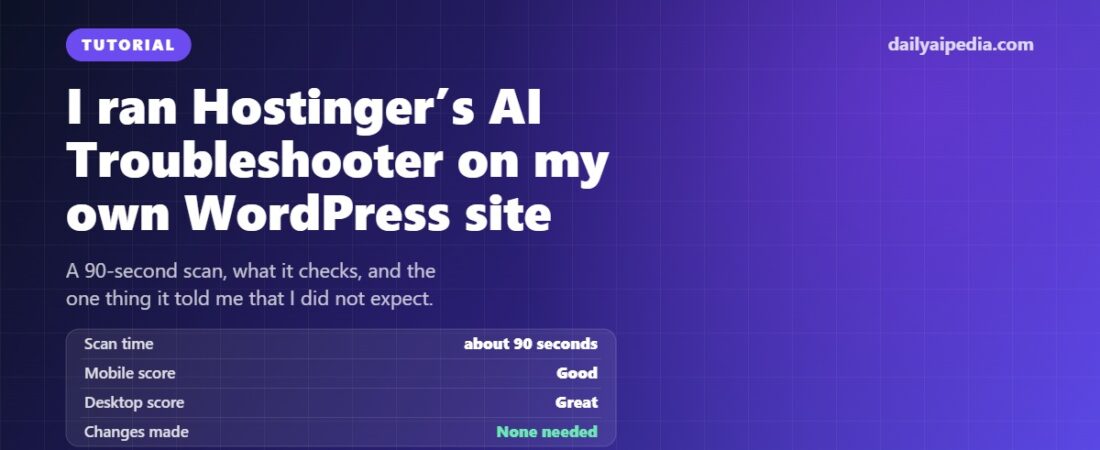
| Time to complete | About 90 seconds |
| Mobile performance score | Good |
| Desktop performance score | Great |
| Changes it made | None — nothing to fix |
What the AI Troubleshooter actually is
It sits in hPanel, Hostinger’s own control panel, rather than inside WordPress. It looks at the hosting layer and the WordPress layer together: caching configuration, image delivery, plugin and theme weight, and the measured performance of the live site. Where it finds something it can safely change, it changes it for you rather than handing you a checklist. It is one of several AI features in the panel — the site-generation side is covered separately in our Hostinger AI Builder write-up.
Three promises are printed on the tool’s own screen before you start it, and they are worth quoting because they set the expectations correctly:
The entire process is automatic.
It only takes a few minutes.
Any changes made to your site can be reverted.
That last line is the one that matters. Automated performance tooling earns trust by being reversible, and Hostinger says this in the interface rather than burying it in documentation.
Before you start
- You need a WordPress site on a Hostinger plan. The tool does not work against sites hosted elsewhere.
- You need hPanel access, not just WordPress admin.
- You must run a speed test first. This is the step people miss. The AI Troubleshooter refuses to scan until it has speed-test data to compare against, and the button simply will not advance without it.
- Give it a quiet moment. It is touching caching and optimisation settings on a live site, so run it when traffic is low, the same way you would run any other optimisation pass.
Step 1 — Find the tool in hPanel
Log in to hPanel, then follow Websites → your domain → Performance → AI Troubleshooter. There is a second entrance at WordPress → AI Troubleshooter in the same dashboard; both land on the same screen, so use whichever path you remember.
If you do not see it at all, you are almost certainly looking at a non-WordPress site in the panel, or at a site on a plan that does not include the WordPress tooling.
Step 2 — Run the speed test
The Performance section has its own speed test. Run it and let it finish. It produces two separate scores, mobile and desktop, which is the right way round — mobile is nearly always the weaker number and the one worth optimising for.
Only once that test has results will the AI Troubleshooter let you continue. Treat it as a prerequisite, not an optional extra.
Step 3 — Start the scan
Start it and leave the tab open. Mine reported progress in steps — 27%, then 44%, then complete — and finished in roughly a minute and a half. Hostinger says “a few minutes”, which is honest; a heavier site with more plugins will take longer than mine did.
Step 4 — Read the verdict
Here is the exact output I got, word for word:
Speed test results
“Your website is performing well and doesn’t need to be optimized.”
Mobile performance score: Good · Desktop performance score: Great · Last scan: 2026-09-16 23:09
No fixes offered. No list of deferred improvements. Nothing to revert, because nothing was changed.
Why it found nothing — and why that is the useful result
A tutorial that ends with “the tool did nothing” sounds like a failed test. It is not. It tells you precisely what the AI Troubleshooter is for, and it is a result you can reproduce and check against your own site.
DailyAIPedia was already doing the things this tool automates:
- LiteSpeed Cache is installed and configured. Page caching, CSS and JS handling and object caching were already in place. That is the largest single lever the troubleshooter has, and it was already pulled.
- The theme is a lean block theme. No page-builder runtime loading on every request, no bundled slider library, no icon font for four icons.
- The plugin list is short. Every plugin on the site is there for a reason and gets removed when it stops earning its place.
So the honest summary is this: the AI Troubleshooter is a catch-up tool, not a ceiling-raiser. If your site has never been tuned, it will find real work to do and do it for you. If you already run a cache plugin and a disciplined theme, it will confirm that and stop — which is worth 90 seconds of your time as a second opinion, and worth much more the day something regresses without you noticing.
What it fixes when it does find something
Based on what the tool inspects and the settings it controls, the fixes fall into a predictable set: enabling or correcting caching at the server level, turning on image optimisation and modern image formats, and flagging plugins or theme behaviour that measurably slow the site down. Because it works at the hosting layer as well as inside WordPress, it can change things a plugin alone cannot reach.
Everything it changes is reversible from the same screen. If a fix breaks a layout or conflicts with something you configured deliberately, you roll it back rather than reconstructing your settings from memory.
Where it will not help
Be clear about the boundary. This is a performance troubleshooter. It is not going to fix a plugin conflict that white-screens your admin, recover a broken database table, or debug a theme template. Those are still support tickets and staging-site work. Judge the tool on page speed and caching, and it does well; expect it to be a general WordPress repair bot and it will disappoint you.
It also cannot rescue a site whose real problem is a bloated page-builder stack or fifty active plugins. It will make that site faster. It will not make it fast.
Is it a reason to host with Hostinger?
On its own, no — one panel feature is never a reason to migrate. But it is a fair example of what the plan includes at the price, and that is the honest way to weigh it: automated caching and image optimisation, a built-in speed test, reversible changes, and no separate subscription for any of it. For the wider picture — plans, VPS, ecommerce and where the value actually sits — see our full Hostinger review for 2026.
If you are picking a host for a new WordPress site and you do not want to spend your first month reading caching documentation, this class of tooling genuinely saves you that month. If you are an experienced operator who already runs LiteSpeed or a CDN, treat it as a useful monitor rather than a headline feature — which is exactly what my scan showed it to be.
Try it yourself: new Hostinger plans through this link get 20% off the first plan. The AI Troubleshooter, the speed test and the WordPress tooling described above are part of the panel — there is no separate add-on to buy. If you are already hosted somewhere else and happy, stay there; this is a recommendation for people who are choosing anyway.
The short version
- hPanel → Websites → your domain → Performance → AI Troubleshooter.
- Run the speed test first. The scan will not start without it.
- Start the scan and wait — about 90 seconds on a light site.
- Apply what it suggests. If something looks wrong afterwards, revert it from the same screen.
- If it tells you there is nothing to fix, believe it, and go spend the time on content instead.
That last point is where I ended up. The tool told me to do nothing, and it was right — so I wrote this instead.
Related reading on DailyAIPedia
- Hostinger Review 2026 — plans, WordPress hosting, VPS and ecommerce, with the 20% first-plan discount.
- Hostinger AI Builder in 2026 — the site-generation side of the panel: backend, subscriptions, files and agentic editing.
- AI Voice Tool Pricing Tracker — 16 tools with prices we re-verify every month.
- AI Voice Tool Picker — answer five questions, get a shortlist based on your actual use case.
Related guides
- Hostinger Ecommerce Review 2026: AI Store Builder, Quick Links, Reviews and 0% Transaction Fees
- InsForge Review 2026: Agent-Native Cloud Infrastructure, CLI Updates, Self-Hosting, and AI Backend Features
- ChatGPT Work Data Agent Review 2026: Connect Business Data and Build AI Dashboards
- Hostinger adds Google Ads with $500 credit, WhatsApp campaigns and a three-tool MCP